Trove File Explorer for macOS
A Windows Explorer Alternative for Mac
Trove is a native Mac file manager for people who already know how Windows Explorer works.
If you've switched from Windows to macOS and find yourself fighting with Finder's way of doing things, Trove gives you a familiar alternative. It brings the folder hierarchy, navigation, file operations and keyboard-driven workflows you already know from Windows Explorer to your Mac.
You don't need to relearn file management just because you switched operating systems.

If you know Windows Explorer, you'll feel at home
Trove isn't just another Finder replacement. It's designed around the file-management habits you've already developed using Windows Explorer.
| Windows Explorer habit | Trove on Mac |
|---|---|
| Recursive folder tree | ✓ |
| Ctrl + X / Ctrl + V | Cmd + X / Cmd + V |
| F2 to rename | F2 |
| Copy as path | Shift + right-click |
| Direct path navigation | Cmd + L |
| Tabs | Cmd + T |
| Multiple panels | Up to 4 |
| Keyboard-driven navigation | ✓ |
| Familiar Grid/List views | ✓ |
Windows-inspired workflow. Native Mac application.
Trove isn't a Windows compatibility layer or a port of Windows Explorer. It's a native macOS application built with SwiftUI and designed to work naturally with macOS.
- Quick Look
- Finder tags
- Dark Mode
- macOS file permissions
- External drives
- Network locations
- Cloud storage
Why do Windows users look for a Finder alternative?
Finder is deeply integrated into macOS, but it doesn't work the way Windows Explorer does. If you've spent years managing files in Windows Explorer, some of Finder's conventions can feel unfamiliar — particularly the way you navigate folders and perform common file operations.
Trove takes a different approach. Instead of asking you to relearn your file-management workflow, it brings the familiar Explorer-style approach to macOS.
Your Windows file-management muscle memory, on Mac
If you've spent years using Windows Explorer, you already know how you want to manage files: where the folder tree should be, how copy and move should work, and how to navigate with the keyboard. Trove is designed around those expectations.
The familiar shortcuts are still there
For many familiar Windows shortcuts, simply replace Ctrl with Cmd. The muscle memory you've built over years doesn't have to disappear when you move to a Mac.
| Windows Explorer | Trove on Mac |
|---|---|
| Ctrl + C — Copy | Cmd + C — Copy |
| Ctrl + X — Cut | Cmd + X — Cut |
| Ctrl + V — Paste | Cmd + V — Paste |
| Ctrl + Z — Undo | Cmd + Z — Undo |
| F2 — Rename | F2 — Rename |
| Ctrl + A — Select all | Cmd + A — Select all |
| Arrow-key navigation | Familiar Cmd + arrow navigation |
Trove also supports F2 for renaming, including batch renaming when multiple files are selected.
A folder tree that behaves the way you expect
Trove gives you a recursive, expandable folder tree in the sidebar, so you can navigate deeply nested folders without repeatedly opening and closing windows. The tree follows your current location, making your place in the hierarchy clear at a glance.
If you've spent years navigating through Windows Explorer's folder tree, Trove should feel immediately familiar.
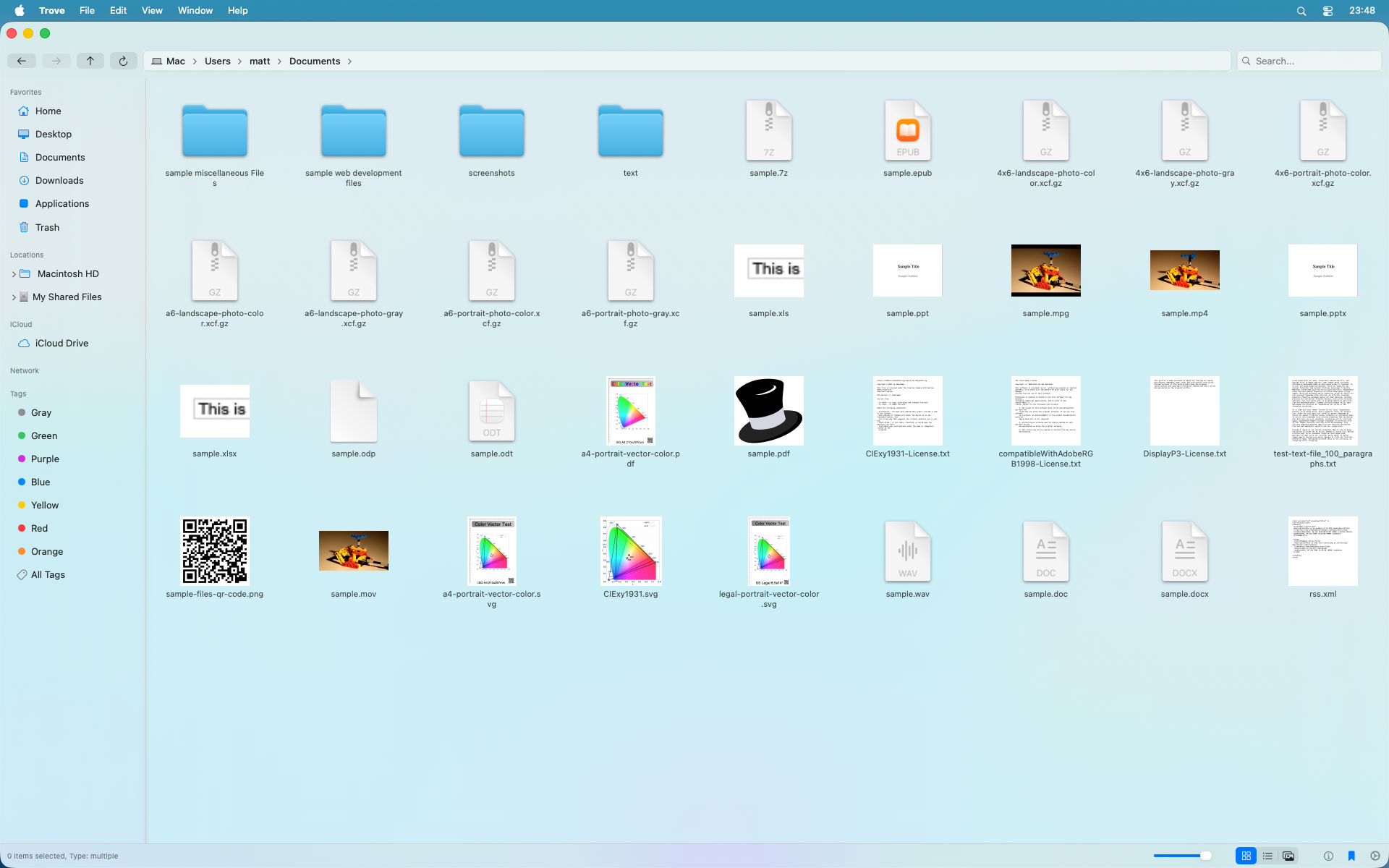
Familiar navigation, built for macOS
Trove combines Explorer-style navigation with native Mac conventions. Navigate back and forward, move to the enclosing folder, edit the current path directly with Cmd + L, use tabs for different locations, and switch between Grid, List and Gallery views.
- Open files with the keyboard and preview them with Quick Look.
- Search recursively through folders.
- Access external drives, network locations and cloud storage.
Tabs and multi-panel browsing
Open multiple folders in tabs, or split a tab into multiple independent panels. Choose a single panel, a vertical or horizontal split, or a four-panel layout. Each panel has its own navigation history, view mode and file-operation state.
Trove is familiar to Windows users, but it's not limited to simply copying Explorer.
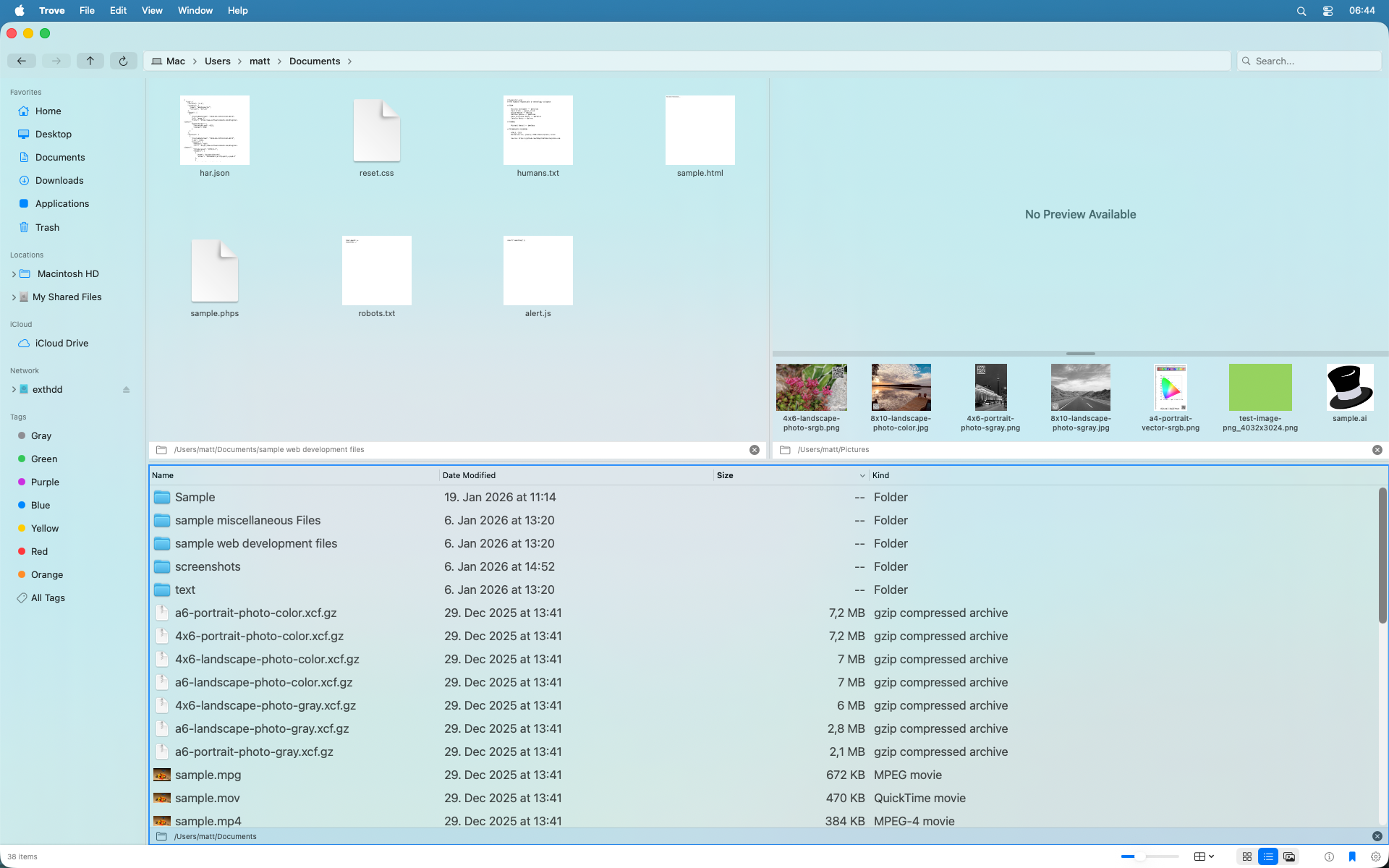
Designed for people switching from Windows
You may be perfectly happy with macOS while still finding one thing frustrating: Finder doesn't work the way you're used to. That's exactly the problem Trove was created to solve.
You shouldn't have to spend weeks learning a new mental model for browsing, copying, moving and organizing files. With Trove, the transition can feel like Windows → Mac, rather than Windows → Mac → relearn file management from scratch.
Is Trove a Windows Explorer clone?
No. Trove takes inspiration from the workflows that make Windows Explorer familiar, but it is designed as a native macOS application — not a pixel-for-pixel recreation.
It focuses on what matters when managing files: folder hierarchy · keyboard shortcuts · navigation · tabs · file operations · familiar views, then adds Mac-native functionality on top.
Trove is for you if...
- You've recently switched from Windows to Mac.
- You never got comfortable with Finder.
- You miss Windows Explorer's folder tree.
- You want Cmd + X / Cmd + V cut and paste.
- You prefer a straightforward, hierarchical file browser.
Trove may not be for you if...
You're looking specifically for an ultra-power-user, Norton/Total Commander-style dual-pane file manager. Trove has a different goal: bring the familiar Windows Explorer workflow to Mac while remaining a clean, native macOS application.
Trove vs Finder
| Finder | Trove | |
|---|---|---|
| Native macOS app | ✓ | ✓ |
| Recursive folder tree | Limited / different workflow | ✓ |
| Cmd + X / Cmd + V cut & paste | — | ✓ |
| F2 rename | — | ✓ |
| Tabs | ✓ | ✓ |
| Multi-panel browsing | — | Up to 4 panels |
| Windows Explorer-style workflow | — | ✓ |
Finder is Apple's file manager. Trove is the file manager for people who prefer the Windows Explorer workflow.
The short version
You already know how to manage files.
You shouldn't have to learn it all over again. Trove brings the familiar Windows Explorer workflow to your Mac — with the keyboard shortcuts, folder hierarchy and navigation you already know, wrapped in a native macOS application.
Switch to Mac. Keep your file-management muscle memory.